

What Slipside is, and the five tabs
A tour of Home, Conditions, Cruising, Racing and Clubs, the four harbors, and what you can do before you make an account.
Also known as: what is slipside, tour, tabs, getting started, first time, new, how it works, navigation, sign in needed, guest, browse, harbors, which harbors, southern california
Slipside is a hub for your harbor: what the wind and water are doing, what is racing, who needs crew, and who to call when something goes wrong at the fuel dock. It reads four Southern California harbors, each from its own stations: Marina del Rey, where it started, plus Channel Islands, King Harbor and Long Beach. Marina del Rey is the home harbor for everyone in this release, and the other three are there to look at through the harbor picker.
The five tabs
The bar along the bottom of the screen never changes.
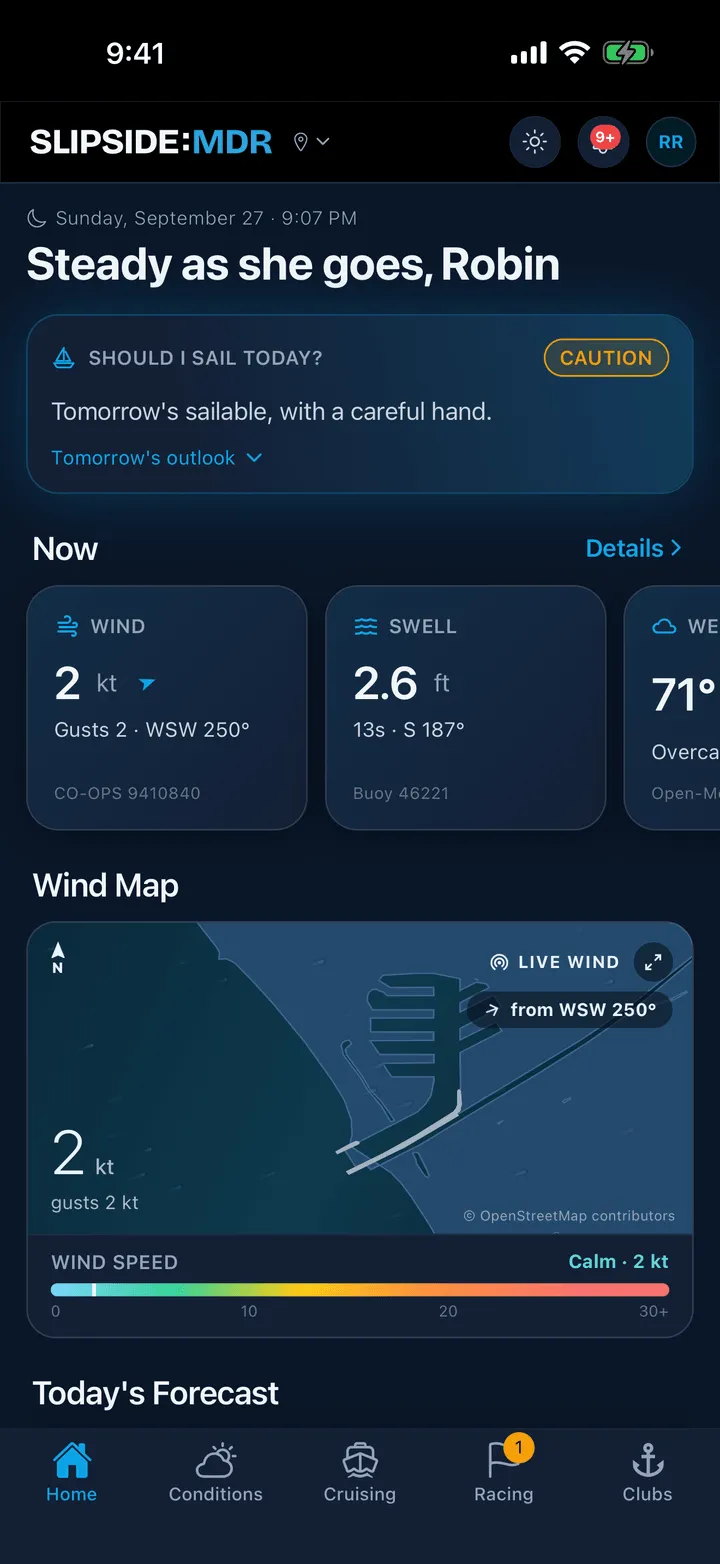
- Home is the daily glance: the Should I sail today? card, live wind, swell, tide and water temperature, the wind map, today’s hourly forecast, daylight, and the next few club events.
- Conditions is the same weather in full, block by block, with charts you can drag a finger across. See Reading the current conditions.
- Cruising plans a day out: pick a destination and a departure time and see the wind you will actually meet at each waypoint. It also holds the harbor guide and Ask the harbor.
- Racing is four views of the same thing: My Races, Calendar, Series and Crew, the last being the Crew Finder board.
- Clubs is the directory: the harbor’s yacht clubs, their upcoming events, and the community organisations and schools.
The bar along the top
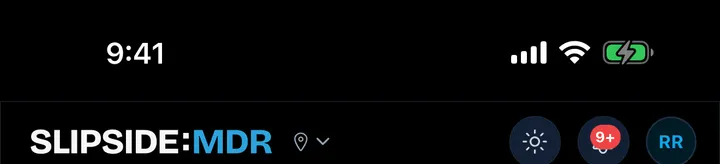
The wordmark reads SLIPSIDE:MDR. The suffix is the harbor you are looking at, teal when it is your home harbor and orange when you are looking at another one. Tap the pin beside it to switch between Marina del Rey, Channel Islands, King Harbor and Long Beach. Reading your home harbor is free; the other harbors are part of Slipside Premium. The three round buttons on the right are the light and dark toggle, your notifications, and your profile.
What works without an account
Most of it. You can read conditions, the wind map, the harbor guide, the whole racing calendar, series pages, individual race pages and the Crew Finder board without signing in.
An account adds the things that are yours: marking the races you are in, your boats and crew, posting or answering in Crew Finder, joining clubs, and any notification. When something needs one, Slipside says so rather than hiding the feature.
Finding your way back
Every screen is reachable from the tab bar, and nothing is more than two taps deep. If you want the short tips again, open Profile, then Help & Support, then Replay the quick tours: three short walk-throughs on Home, Racing and Crew Finder.
Still stuck? In the app, open Profile, then Help & Support, and use Send to support. Otherwise email support@slipside.app.