

Deleting your account
Delete your Slipside account from inside the app, exactly what goes and what stays, and what to do if you cannot get into the app.
Also known as: delete account, close account, remove my data, delete my profile, cancel account, erase, privacy, GDPR, deletion, permanent
You can delete your account yourself, from inside the app, without asking anyone.
How
-
Open Profile and scroll to Account.
-
Tap Delete account, in red.
-
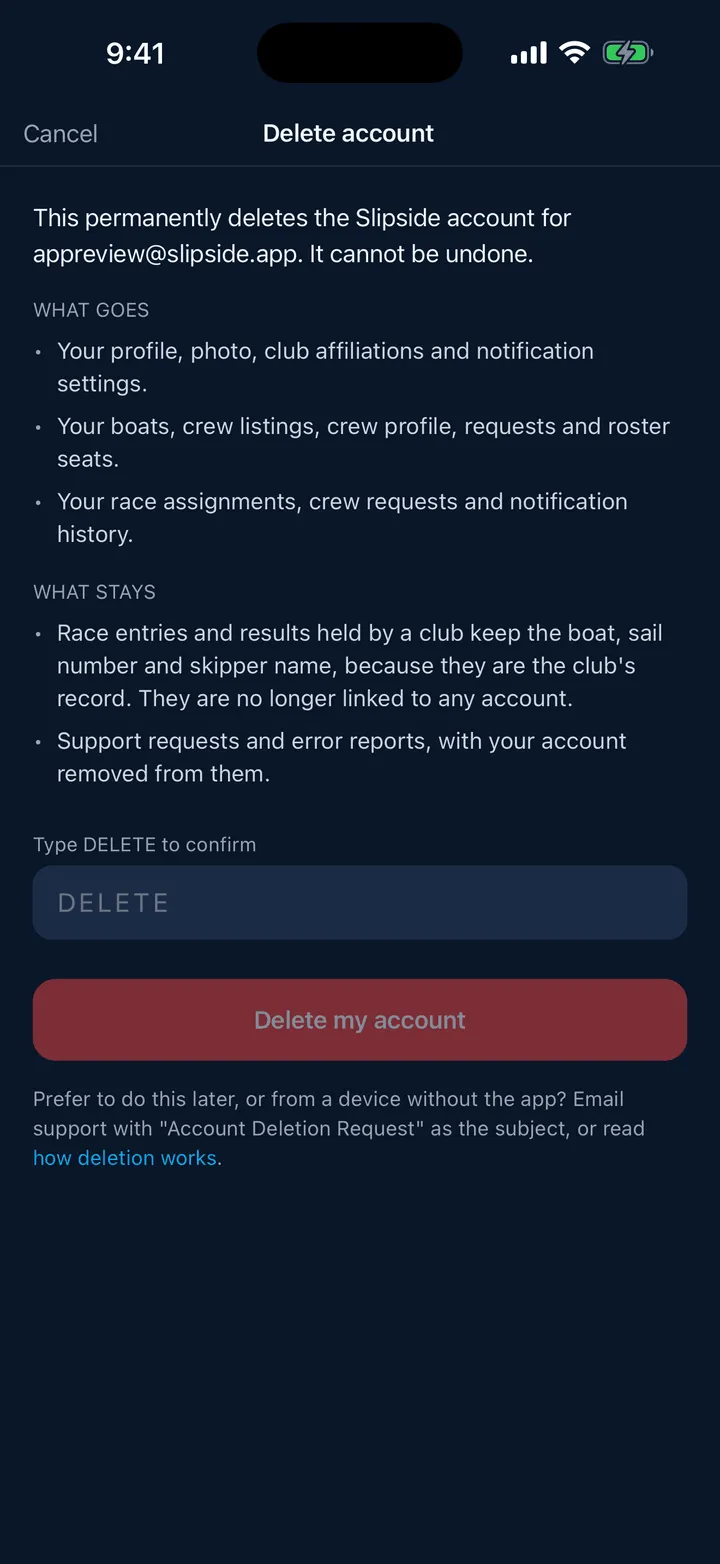
Read the two lists, WHAT GOES and WHAT STAYS.
-
Type DELETE in the field, then tap Delete my account.
If you signed in with Apple, Apple asks you to confirm with Face ID or your passcode along the way; that is Slipside disconnecting itself from your Apple ID.
You end on Your account is deleted and are signed out. Conditions, the racing calendar and the clubs are still there without an account.
What goes
- Your profile, photo, club affiliations and notification settings.
- Your boats, crew listings, crew profile, requests and roster seats.
- Your race assignments, crew requests and notification history.
- Slipside’s connection to your Apple ID, if you used Apple.
What stays
- Race entries and results held by a club. These keep the boat, sail number and skipper name, because they are the club’s record of who raced. They are no longer linked to any account.
- Support requests and error reports, with your account removed from them.
It cannot be undone
There is no grace period and no recovery. Signing up again with the same address makes a brand-new account with nothing in it.
If you cannot get into the app
Email support@slipside.app with Account Deletion Request as the subject. There is also a page describing how deletion works at slipside.app/account-deletion.html, linked at the bottom of the same sheet.
Still stuck? In the app, open Profile, then Help & Support, and use Send to support. Otherwise email support@slipside.app.