

Marine advisories and warnings
What the red and amber banner at the top of Home and Conditions means, how to read the full alert text, and how advisory notifications reach your phone.
Also known as: small craft advisory, gale warning, dense fog advisory, warning, advisory, alert, banner, red banner, amber banner, NWS, National Weather Service, hazardous seas, high surf, PZZ655, notification
When the National Weather Service issues an alert for the coastal waters around your harbor, Slipside puts it at the top of Home and Conditions where you cannot miss it, and sends a notification to phones that allow them. The banner follows the harbor you are looking at; the notification follows your home harbor.
The banner
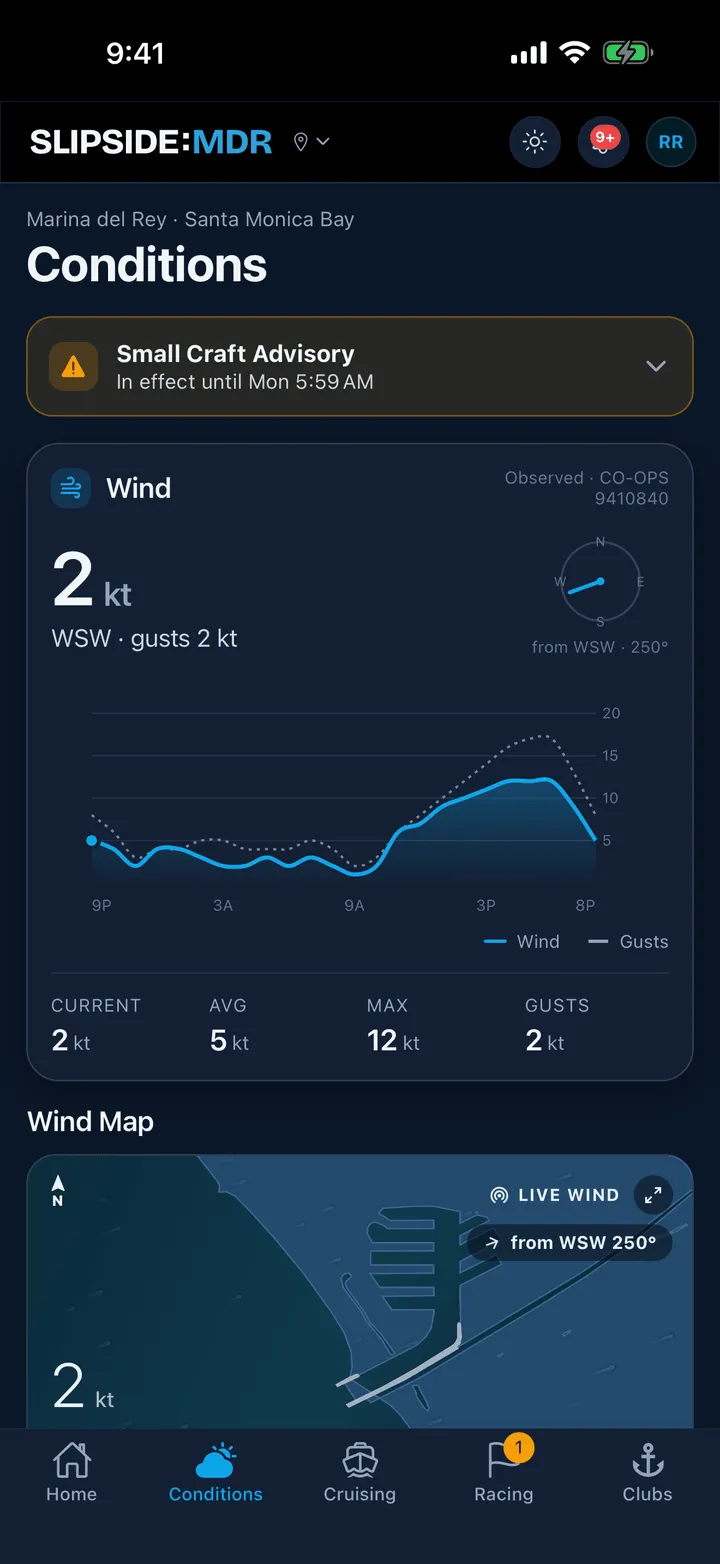
The banner appears above everything else on Home and on Conditions whenever an alert is active, and disappears on its own when the alert expires. You cannot swipe it away while it is in effect.
- Amber is an advisory, such as a Small Craft Advisory or a Dense Fog Advisory.
- Red is a warning, such as a Gale Warning.
The bold line is the name of the alert. Under it is when it ends (“In effect until Thu 9:00 PM”) or, if the Weather Service has not given an end time, the headline of the alert. When more than one alert is active the first line adds +1 more (or however many), and the banner shows the most serious one first.
Reading the full text
-
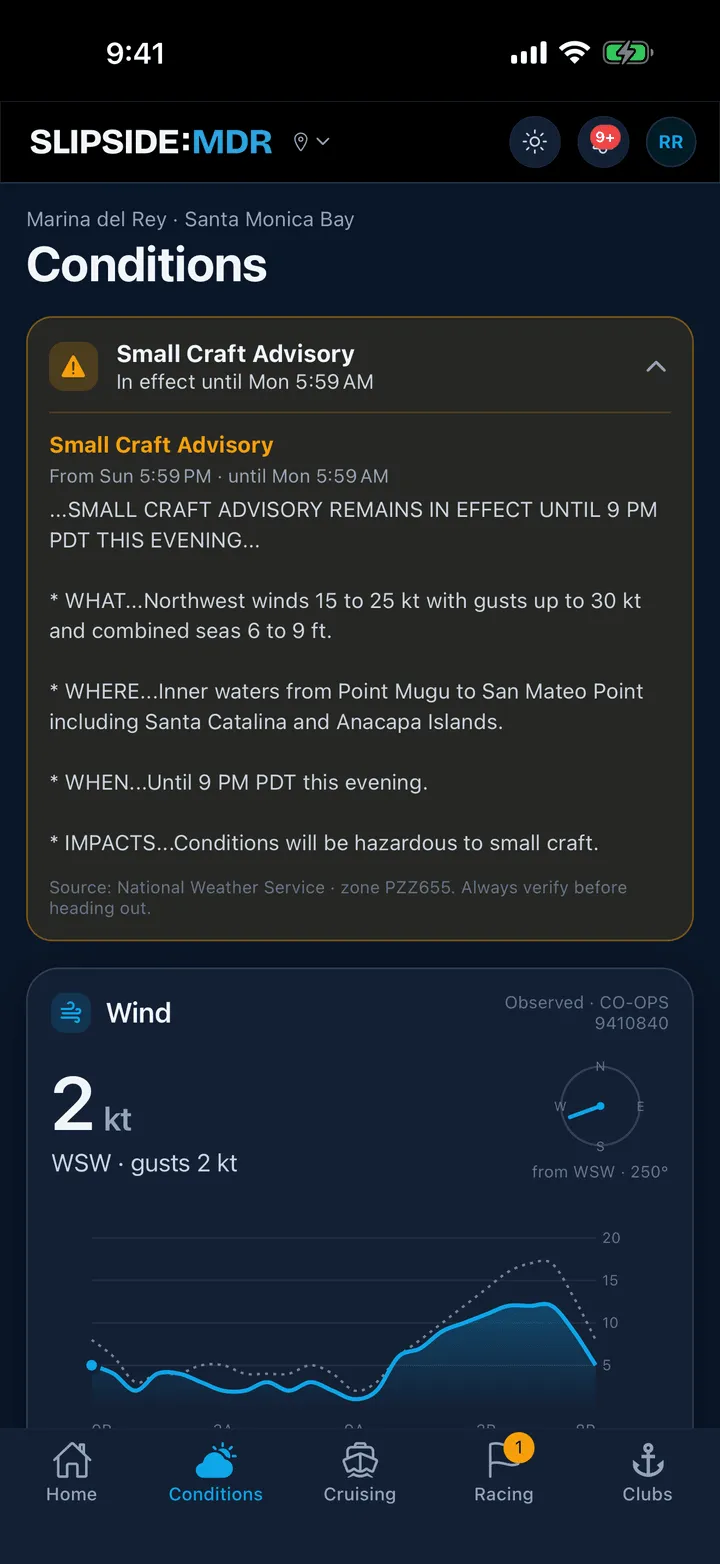
Tap the banner.
-
Every active alert is listed with its name, when it starts and ends, and the full text from the Weather Service.
-
Tap the banner again to fold it back to one line.
The footer of the expanded banner names the source: the National Weather Service forecast for zone PZZ655, the inner waters from Point Mugu to San Mateo Point including Santa Catalina and Anacapa Islands. That is a large stretch of water; an advisory for the zone does not always mean the same conditions in the harbor entrance, and the reverse is also true. The banner is a prompt to check, not a substitute for looking.
Advisory notifications
If you have allowed notifications, Slipside sends a push when a new advisory or warning is issued for your home harbor. The notification is titled with the alert name and the harbor, for example “Small Craft Advisory · Marina del Rey”. Tap it and the app opens the Conditions tab for that harbor, with the banner at the top. The same notification is kept in your inbox: tap the bell at the top of any screen to see it, and tap the row to read the full alert text.
In version 1.0 these notifications are on for everyone who allows notifications; there is no switch for them in the app. Gale and other warnings, fog advisories and small craft advisories all arrive the same way. If you are not receiving them, check that Slipside is allowed to send notifications in your phone’s settings (on iPhone, Settings, then Notifications, then Slipside; on Android, Settings, then Apps, then Slipside, then Notifications). Wind alerts, which fire on the wind speed you choose rather than on a Weather Service alert, are separate; see Getting a push when the wind picks up.
The marine forecast
Alerts are separate from the routine forecast. The Marine Forecast block further down the Conditions tab shows the Weather Service’s text forecast for the same zone, period by period, whether or not an alert is active. See Reading the current conditions.
Still stuck? In the app, open Profile, then Help & Support, and use Send to support. Otherwise email support@slipside.app.