

Creating an account
Sign up with an email address and a six-digit code, or with Apple or Google, then fill in the short profile setup.
Also known as: sign up, create account, register, new account, apple, google, sign in with apple, confirmation code, six digit code, verify email, onboarding, setup
An account is free and takes a minute. You need one to mark the races you are in, add a boat, post in Crew Finder, join clubs and receive any notification.
Where to start
Tap the person icon at the top right of any screen, or, on first launch, tap Create account on the welcome screens.
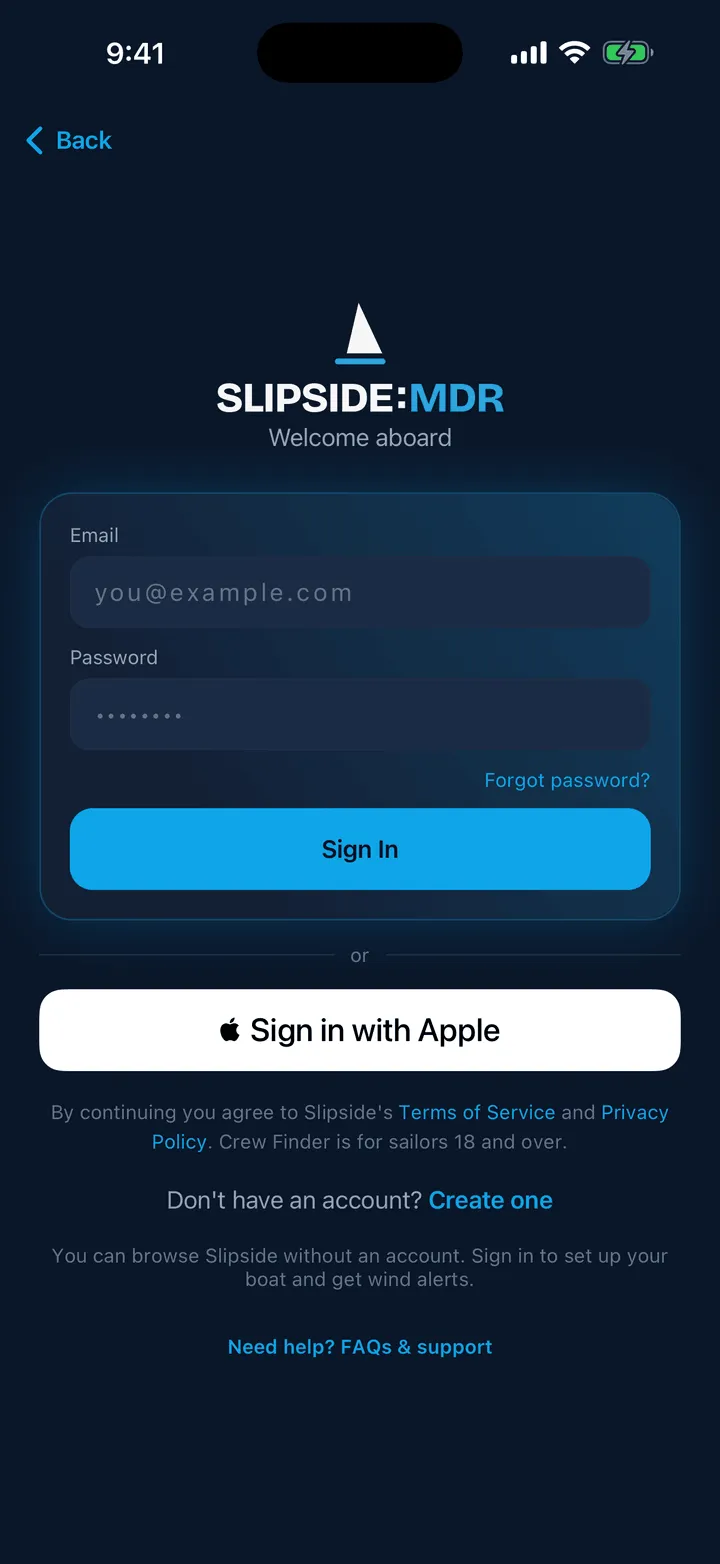
With an email address
- Fill in Name, Email and Password, then tap Create Account.
- Slipside emails you a six-digit code. Open your email, find the message from Slipside, and type the code into Confirmation code, then tap Confirm & Sign In. The email also contains a link you can tap; after that, come back and sign in.
- If nothing arrives within a minute, check your spam folder, then tap Didn’t get it? Send a new code.
The code, not a link, is the thing that matters: every Slipside email that asks you to confirm something is a six-digit number.
With Apple or Google
On an iPhone you can tap Sign in with Apple; on either phone you can use the Google button, when your device supports it. Both create the account on first use, so the same terms apply.
Apple sends your name only the first time, so if you use Apple, do not cancel and retry before the account is made or your name may arrive blank. You can always set it later in Profile.
An account made with Apple or Google has no Slipside password, and its email address is managed by Apple or Google rather than in the app.
The terms line
Under the form is the line By continuing you agree to Slipside’s Terms of Service and Privacy Policy. Crew Finder is for sailors 18 and over. Both are links. It sits under every way in, including the Apple and Google buttons.
Setting up your profile
New accounts get three short cards. Skip for now is at the top right of each one, and it saves whatever you have already typed rather than throwing it away.
- About you: a photo (optional), your name, whether you mainly sail as Skipper or Crew, and an experience level of New, Club or Pro. The experience level also tunes the Should I sail today? briefing.
- Your boat: a boat name, its class, and whether you own it or crew on it. Skip it if you sail on other people’s boats; you can add a boat any time.
- Clubs & alerts: tap every club you sail with, first tap becomes your home club. At the bottom, Enable alerts asks your phone for permission to send notifications, and Maybe later puts that off until you turn a notification on in Profile.
Tap Finish and you land on Home. Everything on those cards can be changed later in Profile.
Still stuck? In the app, open Profile, then Help & Support, and use Send to support. Otherwise email support@slipside.app.